Claude Code Hacked My Smart TV
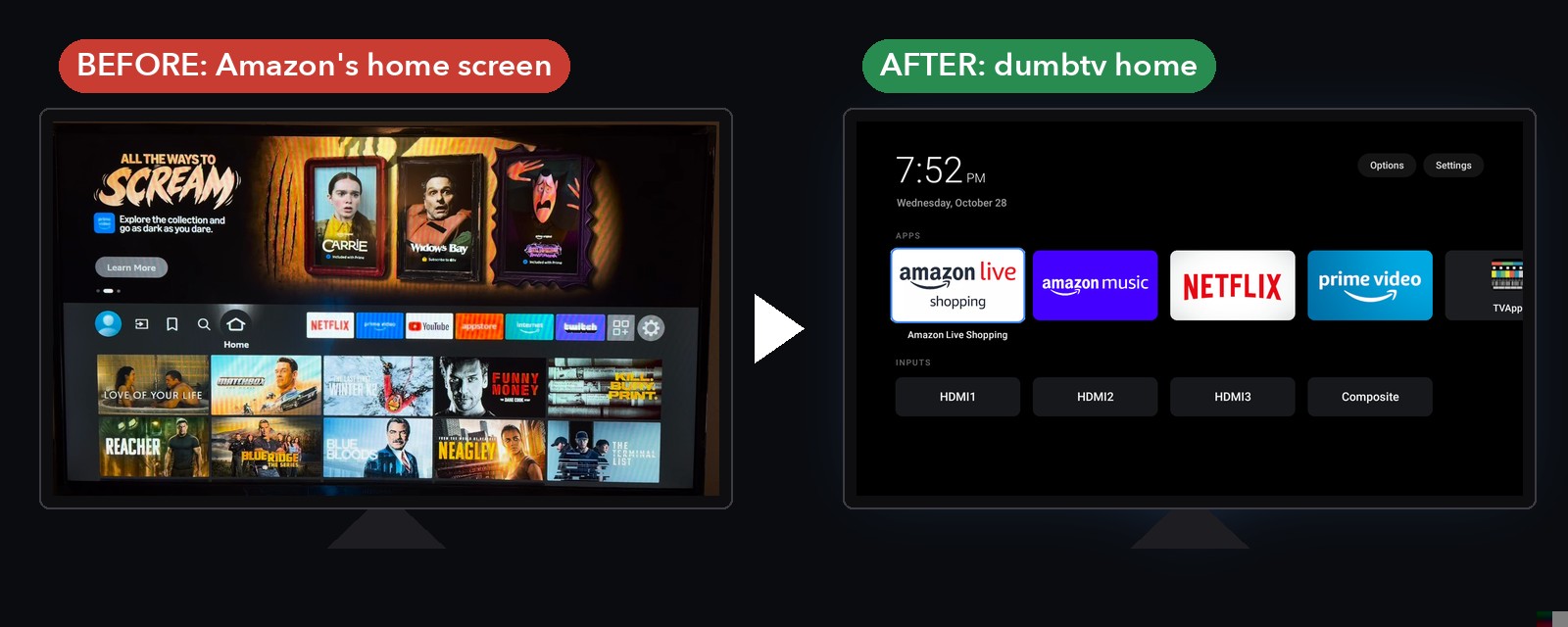
I wanted two things from my TV. I wanted my homelab and my AI assistant to be able to control it, and I wanted to get rid of the Fire TV home screen, which is mostly ads for shows I never asked for.
So I gave Claude Code one prompt and worked through the rest with it. It found the TVs on my network, found an open-source project that replaces the Fire TV home screen without rooting the TV, connected to it, and set it all up. Now I can say "play something funny from Jellyfin" and a movie starts on the TV.
This post goes with the video above. Everything I used, the prompts, the scripts and the full write-up, is free on my GitHub: [homelab-tv-takeover](https://github.com/KooEmmanuel/homelab-tv-takeover).
You don't need a homelab for this
I built it in layers, and each one works on its own:
- Just a laptop. A laptop on the same Wi-Fi as the TV, plus Claude Code. That gets you the clean home screen and a remote you can use from the terminal. - Add an AI assistant. Claude Code or Claude Desktop can control the TV for you, so you can ask in plain English: "open YouTube on the TV". - Add a homelab. An always-on computer like my Raspberry Pi 5 keeps the TV connected all the time, even when the laptop is closed, and lets you put your own apps on the TV.
Most people should start with the laptop and only go further if they want to. If you want a homelab and don't have one yet, my [homelab guide](/blog/build-your-own-homelab) walks through the whole build.
Will it work on my TV?
Fire TV, Google TV and Android TV, yes. They all run Android underneath and have something called ADB (Android Debug Bridge), which lets a computer on your Wi-Fi control the TV, a bit like a remote.
LG, Samsung and Roku have their own custom home screen projects too, through each brand's Developer Mode. I've linked them in the repo under "Will it work on my TV?". Mine is a 39" Insignia Fire TV.
Step 1: Turn on developer options on the TV
This is the only part you do with the remote.
1. Go to Settings, then Device & Software, then About. 2. Highlight the first line, your TV's name, and press the middle button on the remote 7 times. The TV tells you you're now a developer. 3. Press Back. There's a new menu called Developer Options. Turn on ADB debugging.
While you're on the About page, write down your TV's IP address (it's under Network). It's your TV's address on your Wi-Fi and looks something like 192.168.1.50.
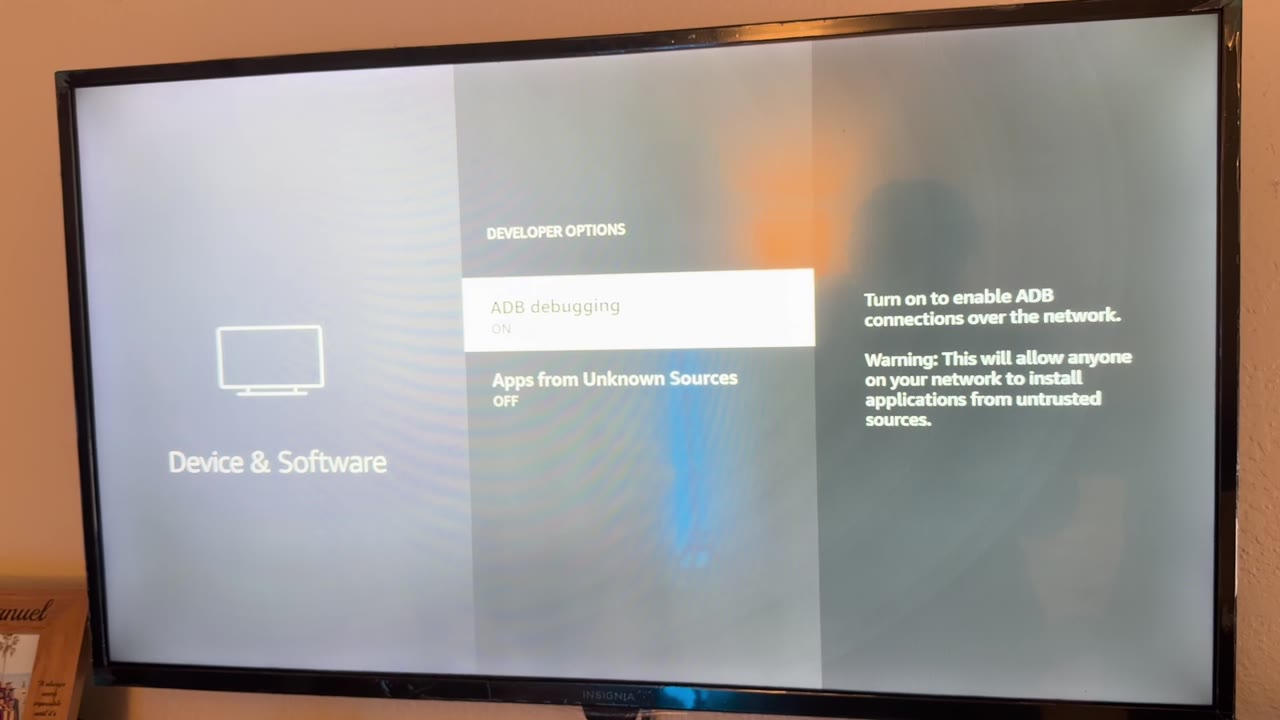
ADB debugging lets devices on your home network ask to connect to the TV. The TV still asks you before it allows a new one, but only turn it on at home. You can switch it off any time.
Step 2: Let Claude find your TV and research it
On your computer, open Claude Code and give it this:
Find the smart TVs on my home network from this computer. Use only read-only discovery and don't press anything on the TVs. Give me a table with each TV's name, brand, model, IP address and how it can be controlled.
Mine found three TVs: two Rokus and the Fire TV. Then, before changing anything, I asked it to research what actually works on my exact TV:
My TV is a Fire TV running Fire OS 6.7, and ADB debugging is on. I want to replace its home screen with a clean one, without rooting it. Find well-maintained open-source projects that do this, tell me which ones were tested on my model, and whether every change can be undone. Include sources. Don't run anything yet.
It came back with [dumbtv](https://github.com/humblemuzzu/dumbtv), an open-source home screen that had already been tested on an Insignia Fire TV with the same software as mine. All the credit for the home screen itself goes to that project.
Step 3: Say yes on the TV
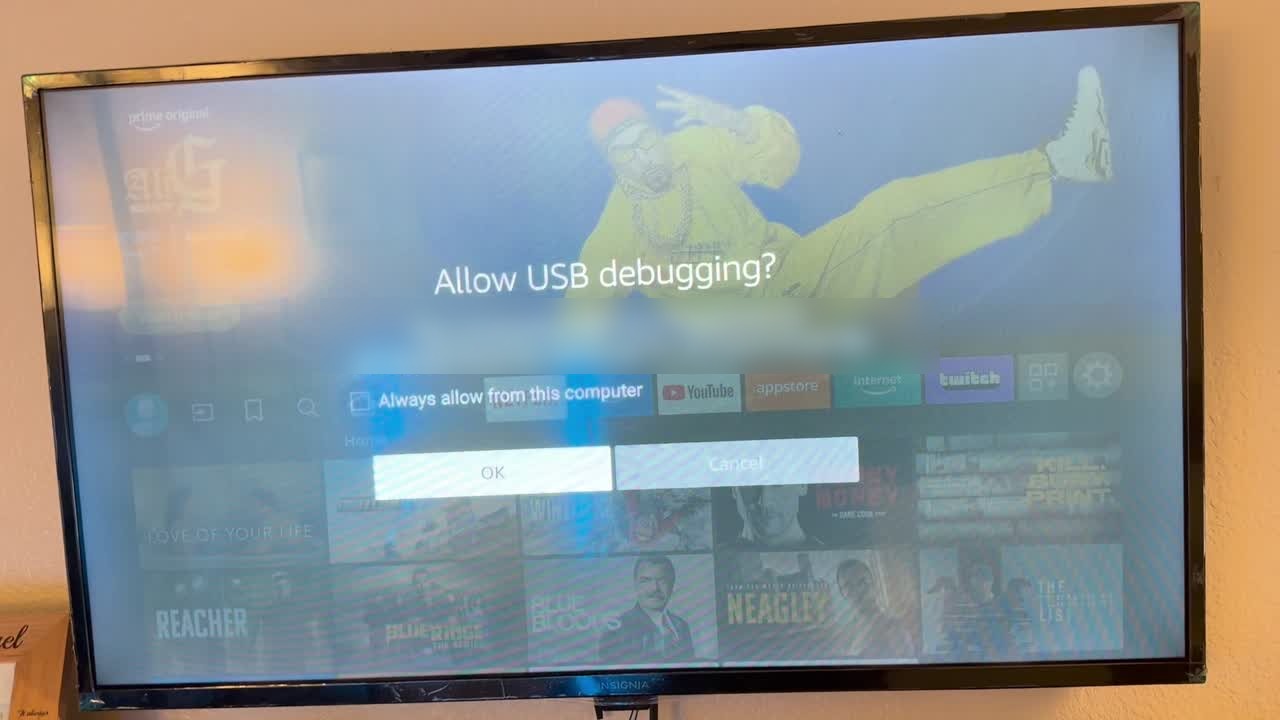
When Claude connects for the first time, a box pops up on the TV asking if it should allow your computer. Tick Always allow from this computer and press OK. If you skip the tick box, it asks again every time.
Step 4: Install only the new home screen
dumbtv can also do a much bigger cleanup, but I only wanted the home screen, and I wanted to see every command before it ran:
Install only the new home screen from dumbtv, not the full cleanup. Read the install script first, show me every command it will run and the command that undoes it, and wait for my OK.
Claude downloaded it, checked the file against the checksum the project publishes, and installed it. Now when I press Home, I get this:
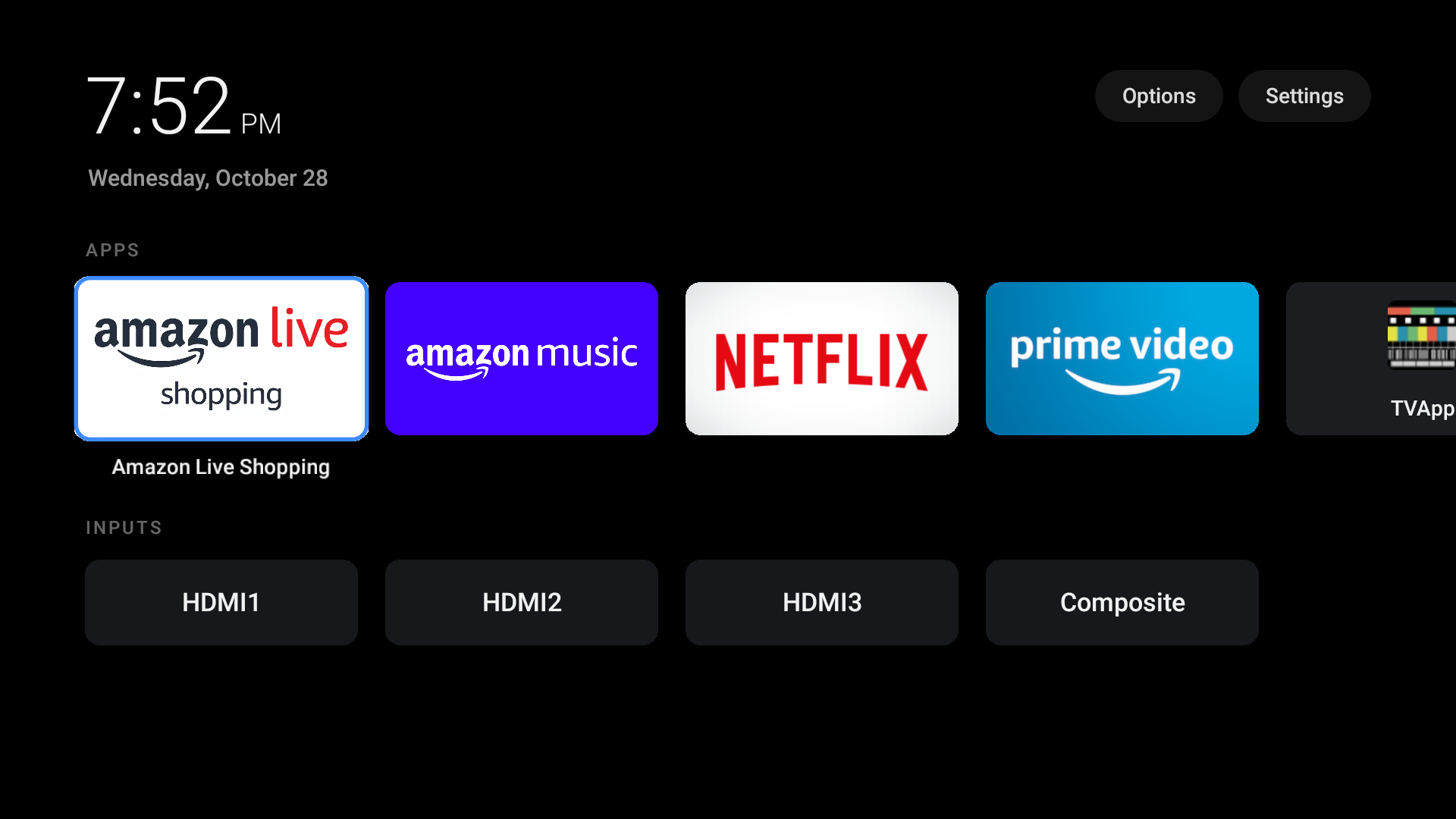
No ads. Just a clock, my apps and my HDMI inputs.
Step 5: Let your assistant control it
This is where it gets fun. The repo has a small MCP server, which is a standard way to give an AI assistant tools. If MCP is new to you, I explained it in [I Let Claude Into My AI Homelab](/blog/i-let-claude-into-my-ai-homelab-mcp-explained).
It gives the assistant tools to check the TV, open apps, press remote buttons, change the volume, and now play videos by name. Two commands add it to Claude Code:
bash cp scripts/firetv scripts/firetv-mcp scripts/firetv-media ~/.local/bin/ claude mcp add firetv -- ~/.local/bin/firetv-mcp
I connected the same server to Buddy, my own desktop assistant, so I can do it all by voice. In the video, I ask it to turn on the TV, open Jellyfin, tell me what movies I have, and play one. Then I ask for YouTube and some football highlights, and they start playing.
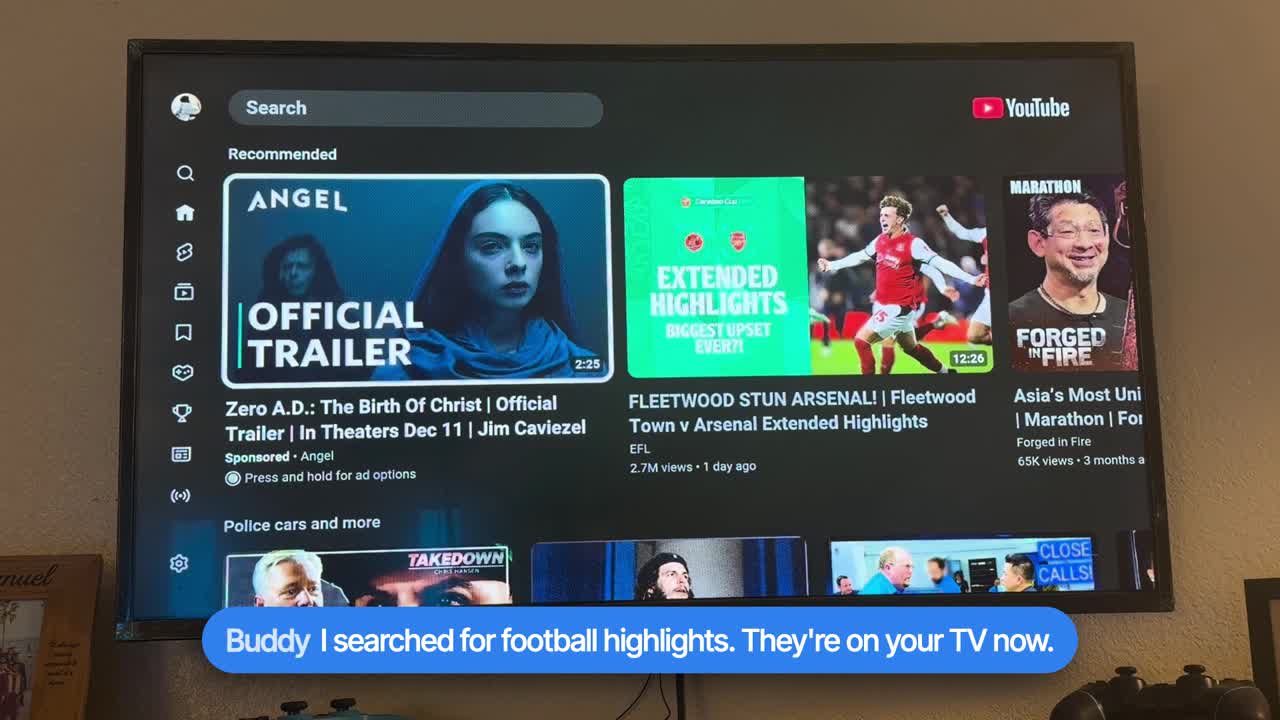
Here's what works right now:
- YouTube: "play rain sounds on YouTube" finds the top video and plays it in [SmartTube](https://github.com/yuliskov/SmartTube), which is YouTube without ads. - Jellyfin: "play something funny from Jellyfin" picks a comedy from my own movie library. You can ask by title, by genre, or just ask what you have. - Settings: "open Wi-Fi settings on the TV" opens that page directly. - The basics: turning the TV on and off, opening apps, volume, and remote buttons.